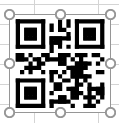
Making QR Code in Microsoft Excel
Some examples, how to use StrokeScribe barcode generator to make QR Code in Excel. The Active Document is the easiest one but allows less customization. The ActiveX-based method is VBA friendly.
For more methods, look in the Related Tutorials.
The examples work with all Excel versions starting from Excel 2007 (excluding online version of Office). The Internet connection is not needed and no third-party online services are used.
QR Code generation in Excel - an Overview
Our QR Code generator is compatible with Windows XP, 7, 10, 11, 32-bit and 64-bit, including Windows Server and 32- and 64-bit Excel versions.
The barcode generator supports both QR Code and Micro QR Code symbols with user-selectable error correction levels.
There are 3 versions of the QR Code generator: the ActiveX/Active Document, the COM Class, and the plain-DLL.
The QR Code generator produces barcodes as vector graphics, but allows save QR Codes into files in BMP/PNG/JPEG, or in vector WMF/EMF formats. It is also possible to change colors, orientation, and quiet zone sizes.
The ActiveX-based QR Code generator is primarily intended for Office integration. It is easy enough to be used by a casual Excel user, but it's also a powerful tool for batch QR Code generation with VBA by professional programmers. The data binding mechanism allows to synchronize QR Code's content with Excel sheet data. VBA integration allows to dynamically create multiple QR Code objects on a Excel sheet and customize the QR Code by modifying it's color, error correction level, quiet zone sizes.
The Class-based QR Code generator is intended for batch barcode generation in Excel and requires programming - C#, VBA, VB.NET is required. The barcode is stored as a vector or raster picture in a file or can be memory-streamed (useful in .Net applications).
Our QR Code generator supports both hi-res laser printers and low-resolution thermal transfer label printers. The specialized 2D barcode fonts are also supported.
Setup
- Download and install the barcode generator.
Placing QR Code in Excel as an Active Document
1. Switch to the Insert tab on the Excel Ribbon and click Object.
2. Look for the StrokeScribe Document in the list of available objects:

3. Right-click the barcode object, select StrokeScribe Control->Properties from the context menu;
Go to the General tab in the barcode properties dialog;
Set Alphabet = QRCODE;
Type any text in the Text field.

QR Code Customization
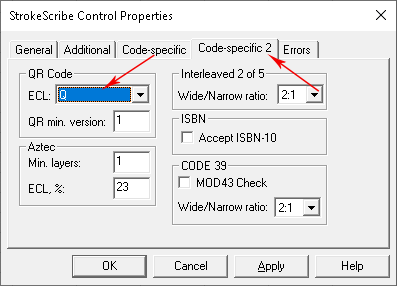
Switch to the Code-specific 2 tab in the barcode properties dialog.
Here you can set the error protection level and minimum size of the QR CODE matrix.
Micro QR Code
To create a MICRO QR code, set the Alphabet property as shown on the picture:

Placing QR Code in Excel as an ActiveX
1. Switch to the Developer tab on the Excel Ribbon and click Insert->More Controls as shown below.
2. Select StrokeScribe Control from the list of available objects and press OK:

3. Click anywhere on the worksheet to insert the barcode object.
4. Activate the Design Mode button on the Developer tab.
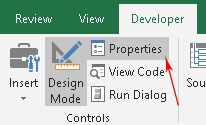
4.1. Right-click the barcode object, select Properties or activate the Properties button on the Ribbon:
5. Use the property list to customize your barcode. To create a QR CODE, modify the following properties:
- Alphabet = QRCODE (or MICROQR if you need MicroQR code);
- Text = any text you want to encode in the barcode.
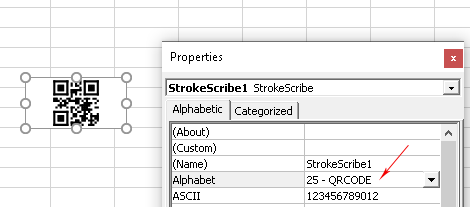
You also may want to use the following properties:
- QrECL - the error correction level;
- QrMinVersion - the minimum size of the barcode matrix;
Linking QR Code to a cell
To automatically update the barcode when a cell content changes, use the linked cell technique.
QR Code Customization with VBA
1. Press Alt+F11 to open VBA window. Double-click the current worksheet name in the VBA project tree.

2. Paste the following code into the VBA editor:
Sub CreateBarcode()
  StrokeScribe1.Alphabet = QRCODE
  StrokeScribe1.Text = "1234ABC" ' Any text to encode in the QR Code

  ' Optional QR Code parameters:
  StrokeScribe1.Rotation = 90
  StrokeScribe1.QrECL = Q  ' Error correcion level
  StrokeScribe1.QrMinVersion = 10 ' Minimum barcode matrix size
End Sub
3. Place the caret into the Sub body, press F5 to run the code and switch back to the Excel window to enjoy the barcode.
To encode data from a cell, use the following code:
StrokeScribe1.Text = Range("A1")
Related Tutorials
- Barcode in Microsoft Excel
- Using Formula to Create Barcode in Excel
- Using DLL version of the barcode generator in Excel
FAQ: Creating QR Codes in Excel
Q: How do I customize the QR code in Excel?
The level of customization depends on the type of the barcode generator you’re using. In most cases, you can:
- Dynamically change the content to generate new QR codes.
- Adjust the size of the QR code by resizing the image.
- Choose the desired error correction level for the QR code.
- You may change the color of QR code.
Q: Can I use Excel to create a batch of QR codes?
Yes, you can create a batch of QR codes in Excel by using our formula-based example and COM-version of our QR code generator. This feature allows to generate QR codes for multiple rows or columns at once.
Q: Can I automate QR code generation in Excel?
Yes, using VBA and COM- or DLL- versions of the barcode generator. You can write a VBA script (see the examples above) to create QR codes automatically based on cell data.
Q: What types of data can I turn into a QR code in Excel?
You can create QR codes for various types of data, such as:
- URLs
- Text
- Contact information (vCards/business cards)
- Emails
- Phone numbers
- Wi-Fi network credentials
- Any binary data
Q: Is there a limit to the size or number of QR codes I can create in Excel?
There is no strict limit imposed by Excel. But, if you are trying to ues ActiveX objects to create QR codes, we do not recommend to create more than 1000 objects.
The font-based method QR code generation or methods provided by COM- and DLL- versions of our QR code generator allow to create an unlimited number of QR codes on a single Excel's worksheet.
Q: Can I create dynamic QR codes that update automatically when data in Excel changes?
Use our formula-based example to create QR codes or link an ActiveX instance of the barcode generator to a cell using the LinkedCell property.
Q: Why is my QR code not scanning properly?
If your QR code isn't scanning correctly, check the following:
- Resolution: The QR code should not be too small. Ensure it’s large enough for scanners to recognize.
- Content: Ensure the data encoded in the QR code is valid and properly formatted when encoding GS1, banking, postal barcodes.
- Placement: Avoid placing QR codes near the edges of the page or too close to the surrounding content.


© 2026 StrokeScribe. All rights reserved. Use of any portion of this site constitutes acceptance of our Terms of Use and Privacy Policy. The website material may not be reproduced, except with the prior written permission.