Generate EAN-13 Barcodes in Excel with StrokeScribe - a Step-by-Step Guide
Tags: Excel, EAN-13, manually, formula, VBAAn example how to insert EAN-13 barcode in Excel with StrokeScribe barcode generator.
For more examples including bulk barcode generation, look in the related tutorials.
Setup
- Download and install the barcode generator
Placing EAN-13 as an Active Document
The method is good when you need a single EAN-13 barcode with manual data entry. This method does not require programming, but it is less customizable.
1. Switch to the Insert tab on the Ribbon and click Object.
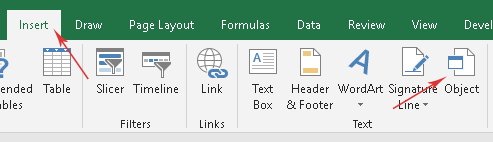
2. Look for the StrokeScribe Document in the list:
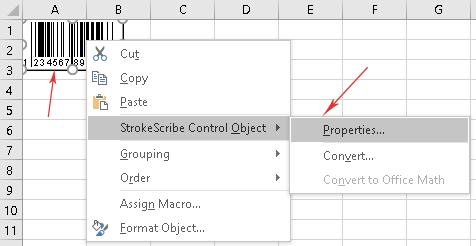
3. Right-click the barcode object, select StrokeScribe Control->Properties from the context menu.
- Switch to the General tab;
- Set Alphabet = EAN-13 (this is the default setting);
- Enter the barcode data into the Text field.
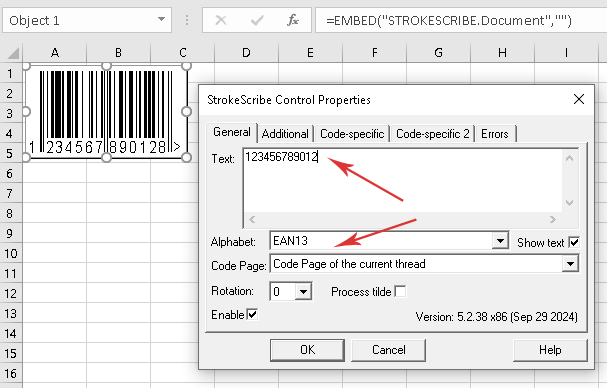
The EAN-13 generator does not have any user-adjustable settings. You may only adjust the quiet zone size on the Additional tab.
Placing EAN-13 in Excel with formula
1. Open the VBA window (Alt+F11) and create a standard module (VBAProject->Insert->Module). Do not use a worksheet or a workbook module - the formula will not call a function from there.
2. Paste the following code into the module:
Function CreateBarcodeEAN13(data As String) As String
  Dim AC As Range
  Set AC = Excel.Application.Caller

  Dim wsh As Worksheet
  Set wsh = AC.Worksheet

  shname = "barcode_" & AC.Address()

  On Error Resume Next
  wsh.Shapes(shname).Delete
  On Error GoTo 0

  bar_w = AC.MergeArea.Width
  bar_h = AC.MergeArea.Height

  Dim ean13_generator As StrokeScribeClass
  Set ean13_generator = CreateObject("STROKESCRIBE.StrokeScribeClass.1")
  ean13_generator.Alphabet = EAN13
  ean13_generator.Text = data

  image_path = Environ("TEMP") & "\EAN13.wmf"
  rc = ean13_generator.SavePicture(image_path, WMF, 1440, 1440 / (bar_w / bar_h))
  If rc > 0 Then
    CreateBarcodeEAN13 = ean13_generator.ErrorDescription
    Exit Function
  End If

  Dim shp As Shape
  Set shp = wsh.Shapes.AddPicture(image_path, msoFalse, msoTrue, AC.Left, AC.Top, bar_w, bar_h)
  shp.Name = shname

  Kill image_path
  CreateBarcodeEAN13 = ""
End Function
3. Add a reference to the StrokeScribe Class into your VBA project.
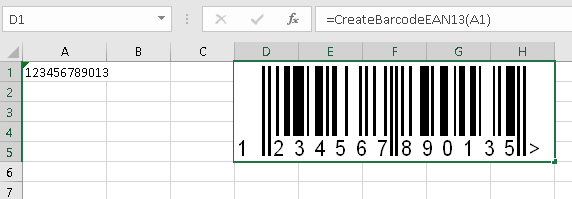
4. Switch back to the Excel window. Choose a cell and type in the formula field:
=CreateBarcodeEAN13("123456789012")
or =CreateBarcodeEAN13(A1)
Related Tutorials
- Barcode in Microsoft Excel
- Using Formula to Create Barcode in Excel
- Using DLL version of the barcode generator in Excel


© 2026 StrokeScribe. All rights reserved. Use of any portion of this site constitutes acceptance of our Terms of Use and Privacy Policy. The website material may not be reproduced, except with the prior written permission.