
QR Code in Microsoft Word
Our QR Code generator is compatible with all Windows versions starting from Windows XP, 32-bit and 64-bit, including Windows Server. It is compatible with all Microsoft Word versions (excluding online version of the Office).
The barcode generator creates both QR Code and Micro QR Code symbols with user-selectable error correction levels.
There are 3 versions of the QR Code generator: the ActiveX/Active Document, the COM Class, and the plain-DLL. All ot them create font-based, vector, and raster QR Code symbols.
Our QR Code generator supports both hi-res laser printers and low-resolution thermal transfer label printers. The specialized 2D barcode fonts are also supported.
Requirements
- Download and install the barcode generator
Placing QR CODE in Word Using Active Document
Here we show how to configure the Active Document version of the StrokeScribe barcode generator in Word.
1. Switch to the Insert tab on the Word Ribbon and click Object.
2. Look for the StrokeScribe Document:

3. Right-click the barcode object, select the StrokeScribe Control->Properties from the context menu.
- Go to the General tab in the barcode properties dialog;
- Set Alphabet = QRCODE;
- Type any text in the Text field.

QR CODE and National Characters
For mobile-readable non-ASCII QR Codes, set Code Page = 65001 in the barcode settings dialog to switch to UTF-8 encoding.
QR CODE Customization
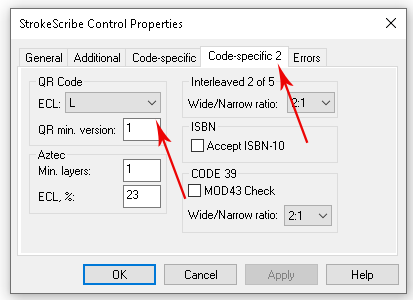
Switch to the Code-specific 2 tab in the barcode properties dialog.
Here you can set the QR Code error protection level (L is the weakest and H is the strongest level).
The QR min. version setting allows to specify the minimum size of the QR Code matrix.
MICRO QR CODE
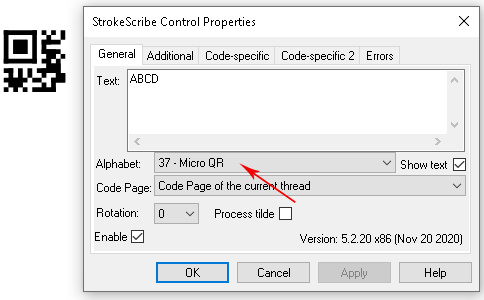
To create a MICRO QR code, set the Alphabet property as shown on the picture:
Placing QR CODE in Word Using ActiveX
1. Switch to the Developer tab on the Word Ribbon, click Insert->More Controls as shown below.
2. Select StrokeScribe control from the list of available objects and press OK:

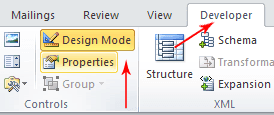
3. Activate the Design Mode button on the Developer tab. Right-click the barcode object, select Properties:
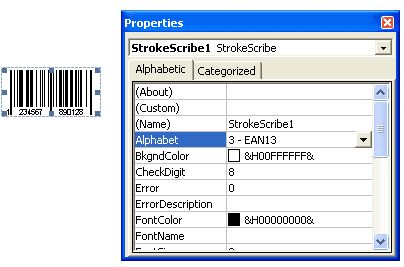
4. Adjust any barcode properties you need.
QR CODE Customization with VBA
1. Paste the following code into the VBA editor:
Sub CreateBarcode()
  StrokeScribe1.Alphabet = QRCODE
  StrokeScribe1.Text = "1234ABC" ' Any text to encode in the QR Code

  ' Optional QR Code parameters:
  StrokeScribe1.Rotation = 90
  StrokeScribe1.QrECL = Q  ' Error correcion level
  StrokeScribe1.QrMinVersion = 10 ' Minimum barcode matrix size

  ' If you want to make a mobile-readable barcode with national (non-ASCII) characters:
  StrokeScribe1.CodePage = 65001
End Sub
2. Place the caret into the Sub body, press F5 to run the code and switch back to the Word window to enjoy the barcode.
3. If you want to resize/move the QR CODE or modify it's setings using the standard Word Properties window, ensure the Design Mode button on the Developper tab is active.
Related Tutorials
- Barcode Generation in Microsoft Word with StrokeScribe Class
- How To Modify, Move And Resize Barcode In Word With VBA
- Font-based barcode printing in Word


© 2026 StrokeScribe. All rights reserved. Use of any portion of this site constitutes acceptance of our Terms of Use and Privacy Policy. The website material may not be reproduced, except with the prior written permission.