
Barcode in Microsoft Publisher
Because MS Publisher doesn't support ActiveX embedding, the barcode printing may be slightly complex in comparison to Word and Excel, and we will need to use VBA.
We use the Class-based version of the StrokeScribe barcode generator to create a barcode image in WMF format (vector graphics) in the TEMP folder. Then, we load the image back into a Publisher's native Shape object.
How to proceed
- Download and install the barcode generator;
- Paste the following code into the VBA editor in Publisher;
- Add a reference to the StrokeScribe Class to the VBA project;
- Run the code.
Setting up the Developer tab
If you don't have the Developer tab on the Ribbon, do the following two steps:
Right-click anywhere on the Ribbon and choose Customize the Ribbon from the context menu:

In the dialog appeared, check the Developer item in the Customize the Ribbon group and then press OK:

Preparing the VBA project
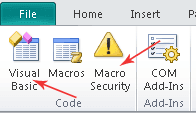
1. Press the Visual Basic button on the Developer tab (or press Alt+F11). The VBA project window will appear.
Note the Macro Security button on the Developer tab. You will need this if Publisher will start showing the "Macro is disabled" warnings.
2. Go to the project window and expand the project tree as shown on the picture. If you don't see the window, the View->Project Explorer command from VBA menu will help.
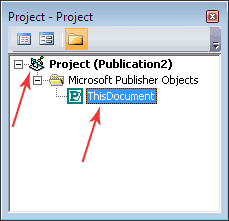
3. Double-click the ThisDocument item and paste the following code into the VBA editor window.
4. Add a reference to StrokeScribe Class into the VBA project.
The VBA code
Sub CreateBarcode()
  Dim doc As Document
  Set doc = Publisher.ActiveDocument

  Dim pg As Page
  Set pg = doc.ActiveView.ActivePage

  shape_name = "BarcodePicture1"

  ' Removes a previously created barcode if runnung the code multiple times.
  On Error Resume Next
  pg.Shapes(shape_name).Delete
  On Error GoTo 0

  picture_path = Environ("TEMP") & "\barcode.wmf" ' A full path to a temporary barcode picture.

  Dim ss As StrokeScribeClass
  Set ss = CreateObject("STROKESCRIBE.StrokeScribeClass.1")

  ss.Alphabet = QRCODE   ' or =CODE128 or =DATAMATRIX
  ss.Text = "https://example.com" ' A typical brochure may contain a barcode with company's www address.

  rc = ss.SavePicture(picture_path, WMF, 1440, 1440) '1440 TWIPS = 1 inch
  If rc > 0 Then
    MsgBox ss.ErrorDescription
    Exit Sub
  End If

  Dim sh As Shape
  Set sh = pg.Shapes.AddPicture(picture_path, msoFalse, msoTrue, 0, 0)

  Dim ps As PageSetup  ' The barcode will be moved do the bottom-right corner of the page.
  Set ps = doc.PageSetup

  sh.Left = ps.PageWidth - sh.Width
  sh.Top = ps.PageHeight - sh.Height

  sh.Name = shape_name

  Kill picture_path ' We don't need the temporary barcode picture file anymore.
  Set ss = Nothing
End Sub
If you want to place the barcode at some specific x/y coordinates, set them the in AddPicture() call:
x = InchesToPoints(3) ' or CentimetersToPoints
y = InchesToPoints(2)
Set sh = pg.Shapes.AddPicture(picture_path, msoFalse, msoTrue, x, y)
How to run the code
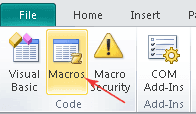
1. Switch to the Publisher window, go to the Developer tab and press the Macros button:
2. Run the CreateBarcode macro and look for a QR Code at the bottom-right corner of the page:
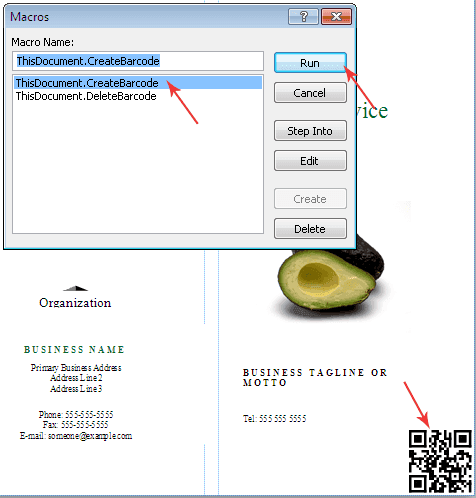
Vector pictures are perfectly scalable - you can manually resize and move the barcode without quality loss.


© 2026 StrokeScribe. All rights reserved. Use of any portion of this site constitutes acceptance of our Terms of Use and Privacy Policy. The website material may not be reproduced, except with the prior written permission.