Generate Barcodes in Microsoft Access – StrokeScribe ActiveX Guide
An example of how to create barcodes in Microsoft Access with ActiveX-based version of our barcode generator.
The example does not require any codig and does not use barcode fonts.
The example works fine for reports that contain less than 2000 barcodes.
Requirements
- Download and install the barcode generator.
Manually Inserting a Barcode in Access Using ActiveX
To create barcodes in Microsoft Access using StrokeScribe ActiveX, you first need to add the control to a report.
In Microsoft Access, on the Design tab, click the More button:

Select ActiveX Controls from the dropdown list:

From the list of available objects select "StrokeScribe Control" and then press OK:

Right-click the inserted barcode object and select Properties from the context menu.
On the Property Sheet, switch to the Data tab.
Fill the Control Source property with a field name that contains your barcode data.

After linking the control to your data source, configure the barcode type and appearance by modifying the ActiveX properties.
On the Property Sheet, switch to the Other tab. Use the Alphabet property to choose the desired barcode type.

You can also customize other settings like barcode size, text visibility, and error correction levels. When you switch to Print Preview, the barcode will be dynamically updated based on the linked data field.
Making mobile-readable barcodes
If you are planning to use national characters in 2D barcodes, make sure the CodePage property shows the right Code Page value. For smartphone apps, specify CodePage=65001 to use UTF-8.
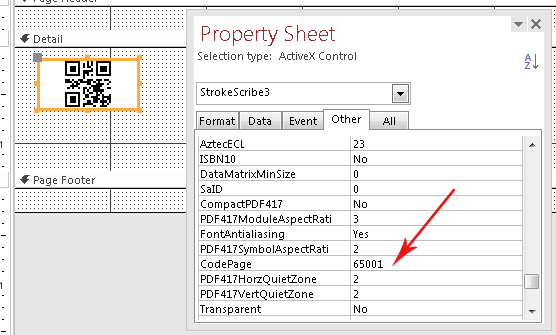
A list of the most common barcode properties
To customize your barcode, look for these properties in the Property Sheet:
All barcode types
- CodePage - the identifier of a national code page. Set the property to 65001 to create 2D barcodes in UTF-8 encoding;
- ProcessTilde - allows to specify ASCII control codes directly in the text;
- TextBelow - allows to set a custom text label below a linear barcode;
- Rotation - rotates a barcode to 90/180/270 degrees;
- ShowText - allows to hide the text label below linear barcodes.
Quiet zones
- HBorderSize - sets the left/right quiet zone size for linear barcodes;
- VBorderPercent - sets the top/bottom quiet zone size for linear barcodes;
- QuietZone2D - sets the quiet zone size for 2D barcodes (Data Matrix,QR Code).
Barcode-specific properties
I2OF5/ITF14
- NWRatio - the narrow:wide ratio of I2OF5, ITF-14 and CODE39 barcodes;
- ITF14BearerBox - choose between the boxed and linear bearer in ITF-14;
- ITF14BearerWidth - the bearer width for ITF-14 barcodes.
QR CODE
- QrECL - the error correction level in QR CODE barcodes;
- QrMinVersion - allows to force the minimum matrix size of a QR CODE.
DATA MATRIX
- DataMatrixMinSize - limits the minimum matrix size of Data Matrix barcodes.
PDF417
- PDF417Cols / PDF417Rows - sets the fixed number of rows and columns in PDF417;
- PDF417ErrLevel - allows fix the error correction level in PDF417.
- PDF417HorzQuietZone / PDF417VertQuietZone
- PDF417ModuleAspectRatio
- PDF417SymbolAspectRatio
- CompactPDF417
Related Tutorials


© 2026 StrokeScribe. All rights reserved. Use of any portion of this site constitutes acceptance of our Terms of Use and Privacy Policy. The website material may not be reproduced, except with the prior written permission.